
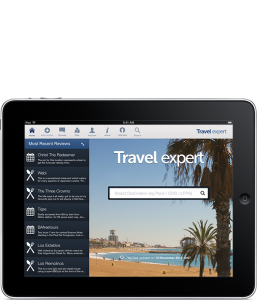
 Adding a location couldn’t be simpler! There are two methods, one for the iPad and one for the iPhone.
How to add a LOCATION on the iPad:
- Make sure you are online (connected to wifi or good strength 3G)
- Once the app is open, click ‘Add Location’ at the top
- Select the type of location that this is (chose from restaurant / bar, activity, hotel, shopping or other)
- Type in the NAME of the location (eg Eiffel Tower), then type in and select a CITY that this belongs to, then press Submit. Once this is done you should get a message to say this is complete
- You can either add a review straight away, otherwise please wait at least 7 minutes before you refresh the database. When you do refresh the database the new location will be loaded
- Within a few days the admin staff will manually try to add the extra details for the location (map coordinates, website, email address, address and phone number
How to add a REVIEW on the iPad:
- Make sure you are online
- It is best to write your review in the notes app on your device, then copy it in to the review in a moment
- If you have literally just added a location then you can add a review straight away
- Otherwise, in the Home page, search for the city first, and select it
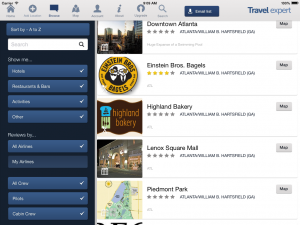
- From the Browse page, select the Location you would like to write a review for
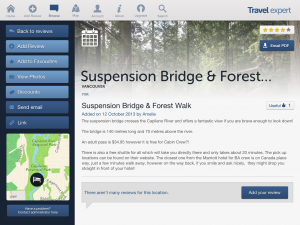
- When you are viewing the Location, click ‘Add Review’
- Add a title for your review, eg ‘opening hours’, ‘general review’, directions etc
- Write your text or copy it in from notes
- Chose the visibility for your review – select from ‘only me’, ‘my airline’ or ‘public’
- Press submit. This should send the information to the server
- Please wait at least 7 minutes before you go to the Home page and press submit when you can load your review to your device.
How to EDIT your review:
- Make sure you are online and open the Travel Expert app
- Either go to ‘Account’ (at the top) > then ‘My Reviews’
- Otherwise search for the city from the Home page > select the location in the Browse page > tap on your review and the edit panel will come up. Once done, check the visibility and press submit.
If you have any problems, please email me anytime from the app (Click ‘About’ and my address is at the bottom of the text on the left)